Want to build your own assignment tracker in Google Sheets? Here's exactly how — plus when it makes sense to skip the DIY and grab a template instead. This tutorial walks you through every step, from setting up your columns to building a live dashboard with grade calculations. If you follow it all the way through, you'll have a fully functional homework tracker. You'll also have a pretty clear sense of how much work goes into building one from scratch — which is useful information in itself.
What You'll Need
Before you start, make sure you have:
- A Google account (free — goes without saying, but here we are)
- 60–90 minutes for a basic version, or 2+ hours if you want the dashboard and grade calculations
- Basic spreadsheet knowledge — you don't need to be an expert, but you should know how to enter formulas, navigate between tabs, and apply formatting
If you're tight on time or just want something that works today, you can grab a pre-built google sheets assignment tracker template instead — but this guide assumes you want to build it yourself.
P.S. Want to save yourself the 2 hours?
Assignment Tracker Pro includes everything below — columns, dropdowns, conditional formatting, dashboard, grade calculator, Do Dates, and automation — pre-built and ready in 10 minutes. Follow the tutorial if you want to learn. Grab the template if you want to skip ahead.
Step 1 — Set Up Your Columns
Open a new Google Sheet. Name the first tab something obvious: Tracker, Assignments, or even just Main.
In Row 1, enter these column headers:
| Column | Header | Purpose |
|---|---|---|
| A | Assignment Name | What the task actually is |
| B | Course | Which class it belongs to |
| C | Type | Essay, quiz, exam, project, lab, etc. |
| D | Due Date | When it's due (use date format) |
| E | Status | Not Started / In Progress / Complete |
| F | Priority | High / Medium / Low |
| G | Weight (%) | How much the assignment counts toward your final grade |
| H | Grade | Your score, entered after you get it back |
| I | Notes | Anything relevant — submission links, instructions, reminders |
Formatting tip: Bold Row 1, freeze it (View > Freeze > 1 row), and give it a dark background with white text so it stands out from your data. This keeps the headers visible as your list grows.

Step 2 — Add Data Validation (Dropdowns)
Typing "In Progress" or "in progress" or "IN PROGRESS" inconsistently will break your formulas later. Dropdown menus fix this.
To create a dropdown for the Status column (Column E):
- Click the letter E to select the entire column (or select E2:E200 if you prefer a range)
- Go to Data > Data validation
- Under "Criteria", select List of items
- Enter:
Not Started, In Progress, Complete - Click Save
Repeat this process for:
- Column F (Priority):
High, Medium, Low - Column C (Type):
Essay, Quiz, Exam, Project, Lab, Presentation, Other - Column B (Course): Enter your actual course names — e.g.
HIST 201, CHEM 110, ENGL 305
Once these are in place, data entry is fast and consistent. Click a cell, pick from the list, done. Your formulas will work correctly because every entry is spelled identically.
Step 3 — Add Conditional Formatting
This is where the tracker becomes visually useful. Colour-coding by status means you can see what's urgent at a glance without reading every row.
To set up conditional formatting:
- Select your data range (e.g. A2:I200)
- Go to Format > Conditional formatting
- In the panel that appears, set your rules one at a time
Rule 1 — Overdue (Red background):
Apply to range: A2:I200
Format cells if: Custom formula is
Formula:
=AND($E2="Not Started",$D2<TODAY())Set background to red, text to white or dark red.
Rule 2 — Due This Week (Amber background):
Apply to range: A2:I200
Format cells if: Custom formula is
Formula:
=AND($D2-TODAY()<=7,$D2>=TODAY())Set background to amber or yellow.
Rule 3 — Complete (Green background):
Apply to range: A2:I200
Format cells if: Custom formula is
Formula:
=$E2="Complete"Set background to green.
Order matters. Google Sheets applies rules top to bottom. Put the "Complete" rule first so green overrides everything else for finished assignments — otherwise a completed assignment due yesterday would still show red.
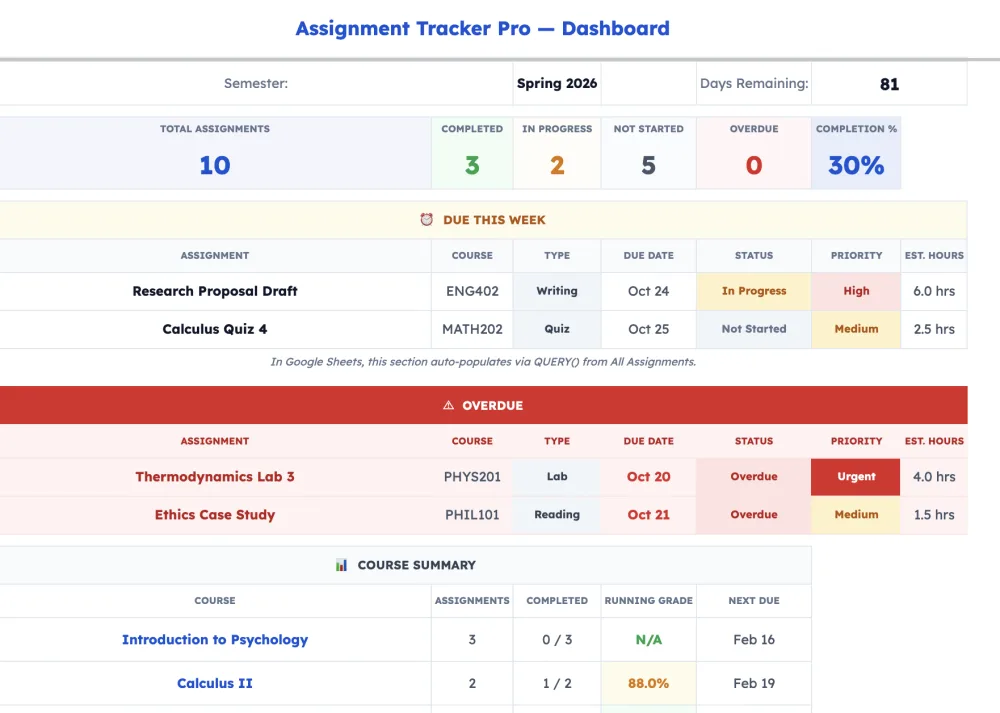
Step 4 — Build a Basic Dashboard
A single-tab tracker works. A tracker with a dashboard is actually useful for understanding where you stand across all your courses.
Create a new tab. Right-click the tab bar at the bottom and select "Insert sheet". Name it Dashboard.
In the Dashboard tab, add these metrics:
Cell B2:  Total Assignments     =COUNTA(Tracker!A2:A)
Cell B3:  Completed             =COUNTIF(Tracker!E2:E,"Complete")
Cell B4:  In Progress           =COUNTIF(Tracker!E2:E,"In Progress")
Cell B5:  Not Started           =COUNTIF(Tracker!E2:E,"Not Started")
Cell B6:  Overdue               =COUNTIFS(Tracker!E2:E,"Not Started",Tracker!D2:D,"<"&TODAY())
To pull upcoming deadlines (next 7 days), use QUERY:
=QUERY(Tracker!A2:I,"SELECT A, B, D, E WHERE D >= date '"&TEXT(TODAY(),"yyyy-mm-dd")&"' AND D <= date '"&TEXT(TODAY()+7,"yyyy-mm-dd")&"' ORDER BY D ASC",0)Put this below your summary metrics. It will automatically pull assignments due in the next seven days, sorted by due date. Every time you open the sheet, it refreshes.
Step 5 — Add Grade Calculations (Optional)
This step only makes sense once you have grades entered in Column H and weights in Column G. Skip it if you're still at the start of a term.
Weighted grade average using SUMPRODUCT:
=SUMPRODUCT((Tracker!H2:H200)*(Tracker!G2:G200))/SUMIF(Tracker!H2:H200,"<>",Tracker!G2:G200)This multiplies each grade by its weight, sums the results, then divides by the total weight of only the assignments that have grades entered. It handles partially-complete terms correctly — blank cells in the Grade column are excluded automatically.
Per-course breakdown:
To see a weighted average for a specific course (say, HIST 201):
=SUMPRODUCT((Tracker!B2:B200="HIST 201")*(Tracker!H2:H200)*(Tracker!G2:G200))/SUMPRODUCT((Tracker!B2:B200="HIST 201")*(Tracker!H2:H200<>"")*(Tracker!G2:G200))Replace "HIST 201" with whatever course code you used in your dropdown.
Step 6 — Sort and Filter
With data flowing in from multiple courses, you need a way to see just one class at a time, or just this week's assignments, without scrolling through everything.
Add filter views:
- Click on your headers row in the Tracker tab
- Go to Data > Create a filter
- Filter arrows will appear on each column header
Useful filters to set up:
- Sort Column D (Due Date) ascending — always see the most urgent assignments at the top
- Filter Column B (Course) — tick just one course to focus on assignments for that class
- Filter Column E (Status) — hide "Complete" rows to see only active work
Pro tip: Use Data > Filter views > Save as filter view to save named filters. You can create one per course and switch between them without re-setting everything each time.
When to Stop Building and Start Using a Template
Here's the honest part.
If you've followed Steps 1–6, you have a functional assignment tracker. It has colour-coding, dropdowns, a dashboard, and grade calculations. That's genuinely useful.
But you've also spent 1–2 hours building it — and you still don't have:
- Do Dates (when to start an assignment, not just when it's due)
- Grade projections (what do I need on the exam to finish with a B+?)
- Automated sorting that updates without manual intervention
- A weekly planner view showing your workload by day
- Per-course tabs with individual dashboards
- An Excel version if you ever switch apps
At some point, building the tracker takes more time than tracking your assignments. That's a reasonable place to stop.
A purpose-built homework tracker template handles all of this in a 10-minute setup. Assignment Tracker Pro includes everything you built in Steps 1–6, plus Do Dates, a "What Do I Need?" grade projection tool, Apps Script automation, and both Sheets and Excel versions. If you want to compare approaches before deciding, this breakdown of all five assignment tracking methods lays out the trade-offs clearly.
Skip the build — Get Assignment Tracker Pro from $6.99
Or if you want to test the concept before spending anything: Try the free Lite version — it's a stripped-down version of the same system, no card required.
Frequently Asked Questions
How long does it take to build an assignment tracker in Google Sheets from scratch?
A basic version with columns, dropdowns, and conditional formatting takes around 1–2 hours if you're following a guide. Adding a dashboard with COUNTIF summaries and a QUERY table pushes it to 2–3 hours. A full-featured tracker with grade calculations, per-course tabs, and automation can take 4+ hours — and that's before debugging anything.
Can I add more courses later?
Yes, but it's more work than it sounds. You'll need to update the data validation dropdown for Column B, update any QUERY formulas that reference specific course names, and create new per-course filter views. It's doable, just not automatic.
Does this work in Excel?
Some of it. The COUNTIF and SUMPRODUCT formulas work in Excel with minor adjustments. The QUERY function does not — Excel uses Power Query instead, which has a different interface and syntax. Conditional formatting works, but the setup is slightly different. Assignment Tracker Pro includes a native Excel version so you don't have to translate anything.
Can I use ChatGPT to help build this?
AI tools are genuinely useful for generating formulas and troubleshooting syntax errors — paste a broken formula in and ask what's wrong, and you'll usually get a fast answer. But AI can't track your deadlines for you. You still need a live sheet that updates daily, and you still need to enter your assignments somewhere. The tracker is the system; AI is just a tool for building parts of it.
Is there a faster way to set up a homework tracker in Google Sheets?
Yes. A pre-built google sheets assignment tracker template gives you everything from Steps 1–6 — and usually more — with a setup time of around 10 minutes. You enter your courses, import your assignments, and start using it the same day. If you want to start immediately rather than build from scratch, the free version is here.