Juggling deadlines across 4+ courses? You need a system, not another app to learn.
Most students already have Google Sheets. What they don't have is a tracker that's actually set up for them — columns in the right order, colour-coded urgency, a dashboard that tells you what needs attention today. Building one from scratch takes hours you don't have. Finding a good one takes a separate search you'd rather skip.
This article gives you both: a free assignment tracker template for Google Sheets you can start using in five minutes, plus an honest look at what the free version covers and where the paid upgrade makes sense.
What to Look for in an Assignment Tracker
Before you download anything, it's worth knowing what separates a useful tracker from a glorified to-do list.
The non-negotiables. Any homework tracker worth using should cover these five basics: assignment name, course, due date, status, and priority. Without all five, you're either missing context or missing urgency — and either way you'll stop trusting the system within a week.
The things that make it actually powerful. A stronger free homework tracker Google Sheets template will also let you log a grade, record the assignment's weight (so you know which ones matter most), and estimate how many hours you'll need. Those three columns turn a flat list into a planning tool.
The bonus features that change how you study. A dashboard view lets you see everything urgent at a glance, without scrolling through every row. A grade calculator tells you where you stand. A Do Date field — when you need to start, not just when it's due — is the feature most students say they wish they'd had sooner.
Why a spreadsheet beats an app. No subscription. No account to create (beyond Google, which you already have). Full customisation — add columns, rename things, adjust colours. Works offline if you download it. And unlike most tracker apps, a student assignment planner free download in spreadsheet form doesn't lock your data behind a platform.
If you want to see how spreadsheet-based trackers compare across the full field of options, we break down five different tracking methods — including apps, Notion, and DIY sheets — so you can pick the right one for how your brain actually works.
Download the Free Assignment Tracker Lite
The Assignment Tracker Lite is a free assignment tracker template built for students managing one course at a time. It's stripped back deliberately — the goal is something you can open, understand, and start using before your next class.
What's included:
- 3 tabs: Instructions, All Assignments, Mini Dashboard
- Tracks 1 course with up to 20 assignments
- Conditional formatting that colour-codes due dates: red for overdue or due today, amber for due within three days, green for anything further out
- Dropdown menus for status (Not Started, In Progress, Done) and priority (High, Medium, Low)
- Mini Dashboard that filters to show only your upcoming and overdue work — so you're never scrolling through completed assignments to find what's next
The template lives in Google Sheets. When you get it, you'll see a "Use Template" button that creates your own private copy — nothing you enter goes anywhere other than your own Google account.
Enter your email to get instant access — the template link lands in your inbox immediately.
What the Free Version Includes
Here's what you're getting, tab by tab.
Instructions tab. A short setup guide walks you through what each column means, what the colour coding does, and how to get your first assignments in. There's also a quick FAQ for common questions. You don't need to read this to start — but it's there if you get stuck.
All Assignments tab. This is where you enter your work. Columns for assignment name, type (essay, test, lab, project — there's a dropdown), due date, estimated hours, status, priority, grade weight, and grade received. When you mark something Done, it stays in the list but visually fades so your active assignments stand out.
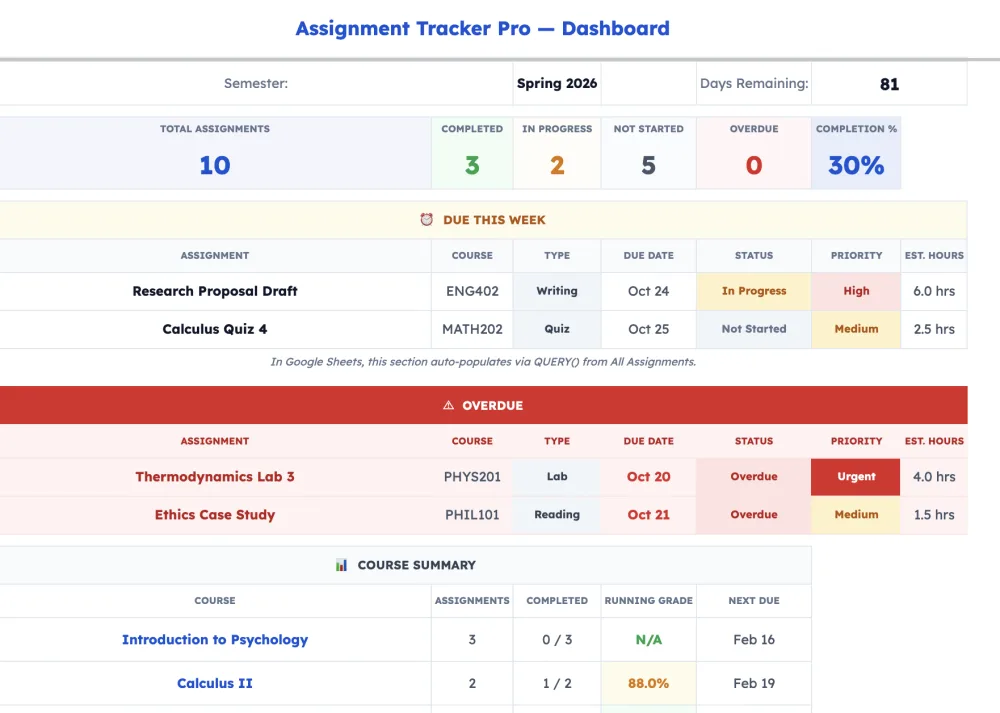
Mini Dashboard. A filtered view that pulls out everything overdue and everything due in the next seven days. No scrolling required. Open this tab at the start of each session to know exactly what needs attention.
Quick start steps:
- Click the link in your email and hit "Use Template" to create your personal copy
- Go to the Instructions tab for a 60-second orientation
- Enter your course name and the current semester in the Settings row at the top
- Start adding assignments — name, due date, status — and the colour coding does the rest
That's it. Five minutes, and your assignments list has a home.
What the Pro Version Adds
The Lite version handles one course. If you're managing four or five — with different grade weightings, different deadlines, and the constant background anxiety of not knowing where you actually stand — the Pro version is built for that.
| Feature | Free Lite | Pro ($6.99) |
|---|---|---|
| Courses supported | 1 | 4+ |
| Dashboard | Mini (single course) | Full multi-course |
| Grade calculator | No | Yes |
| "What Do I Need?" projection | No | Yes |
| Do Date engine | No | Yes |
| Weekly planner | No | Yes |
| Apps Script automation | No | Yes (sort, archive, reset) |
| Excel version included | No | Yes (.xlsx) |
A note on the features that aren't self-explanatory:
"What Do I Need?" is the grade projection calculator. You enter your target grade for a course — say, a B+ — and it tells you the exact score you need on remaining assessments to hit it. Every student does this calculation in their head before finals. The Pro version does it automatically, per course, whenever you open the tracker.
The Do Date engine calculates backwards from your due date. Based on the assignment's weight and your personal lead-time preference, it tells you when to start each assignment — not just when it's due. That's the feature most students say changed how they plan their weeks.
Apps Script automation handles the maintenance work that kills most DIY trackers: sorting, archiving completed work, and resetting at the start of a new semester. You don't manually manage rows. The tracker manages itself.
For a full comparison of how the Pro version stacks up against every other option on the market, see our best assignment tracker templates for Google Sheets review.
Frequently Asked Questions
Is it really free?
Yes. Enter your email and the template link goes to your inbox immediately. No trial period, no credit card, no upsell required to use the Lite version. It's free because it's a genuinely useful tool — and because some of the people who use it will want the Pro version once they've seen how it works.
Does it work on my phone?
Yes. The Google Sheets mobile app handles it fine. The Mini Dashboard tab is the most useful on mobile — it's a compact filtered view, so you're not pinching and zooming through a full spreadsheet. The full All Assignments tab is better on a larger screen, but readable on a phone.
Can I add more courses to the free version?
The Lite version is set up for one course — the structure assumes a single course name and a single set of 20 assignment rows. You could duplicate the sheet and run separate files for each course, but it gets unwieldy fast. If you're tracking two or more courses, the Pro version with its multi-course dashboard is the right tool. It's built for the way a real semester works.
Can I use ChatGPT to do my homework?
AI tools are genuinely useful for understanding concepts, breaking down complex topics, and thinking through arguments. But they don't manage deadlines, calculate grades, or tell you which of your assignments pile needs to come first today. Those are tracking problems, not understanding problems — and that's what a homework tracker template is for. Use both for what they're actually good at.
Already using the free version?
Upgrade to Pro for $6.99Get multi-course tracking, grade projections, and the Do Date engine.